Tabbed Docks
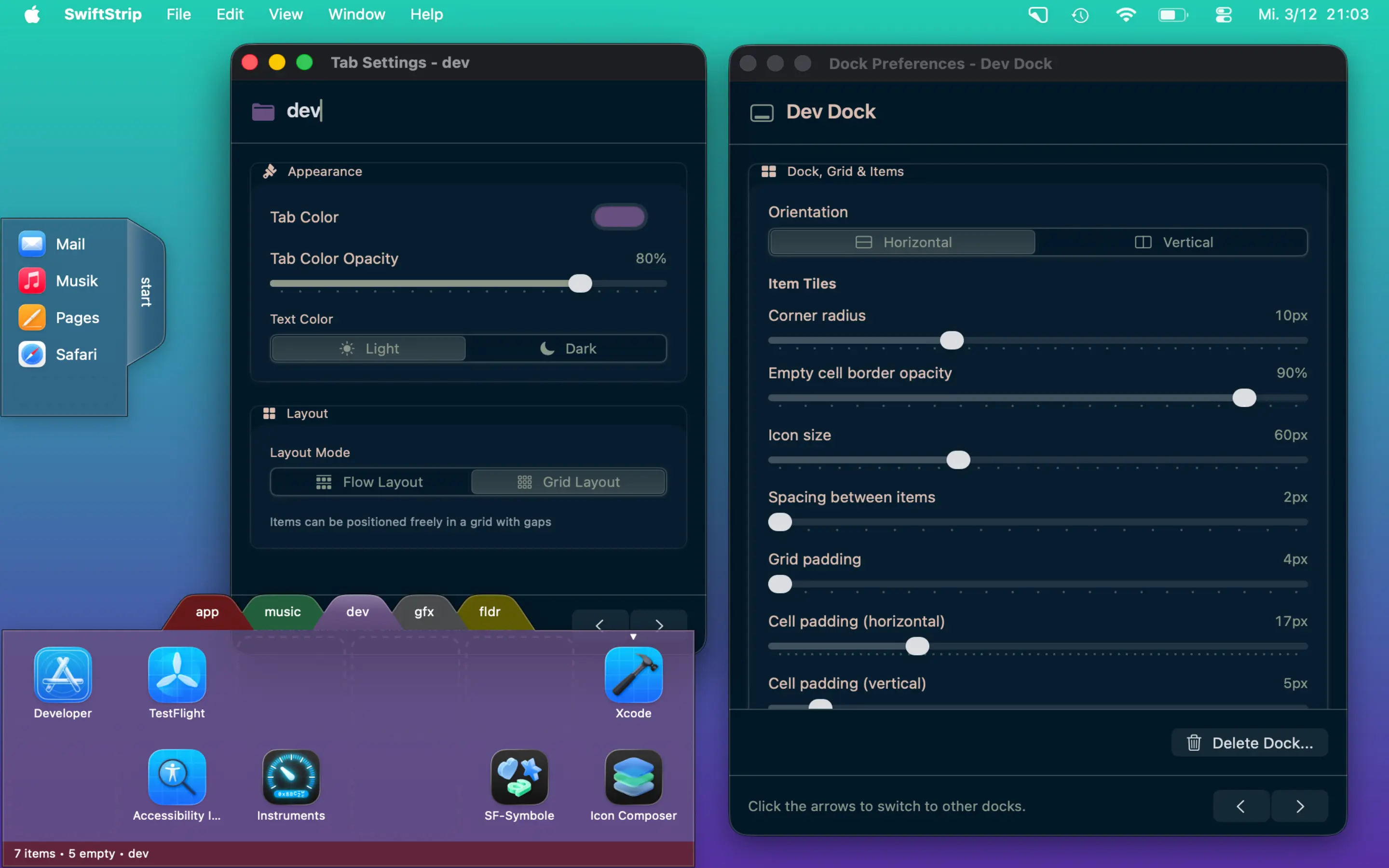
Group apps, files, and folders into tabs within each dock. Switch instantly with keyboard shortcuts or a single click. Color-code tabs for visual clarity.
Create floating tabbed docks to organize your apps, files, and folders. Drag and drop from Finder, auto-hide when you don't need them, and customize every detail. Native macOS, lightweight, free to start.

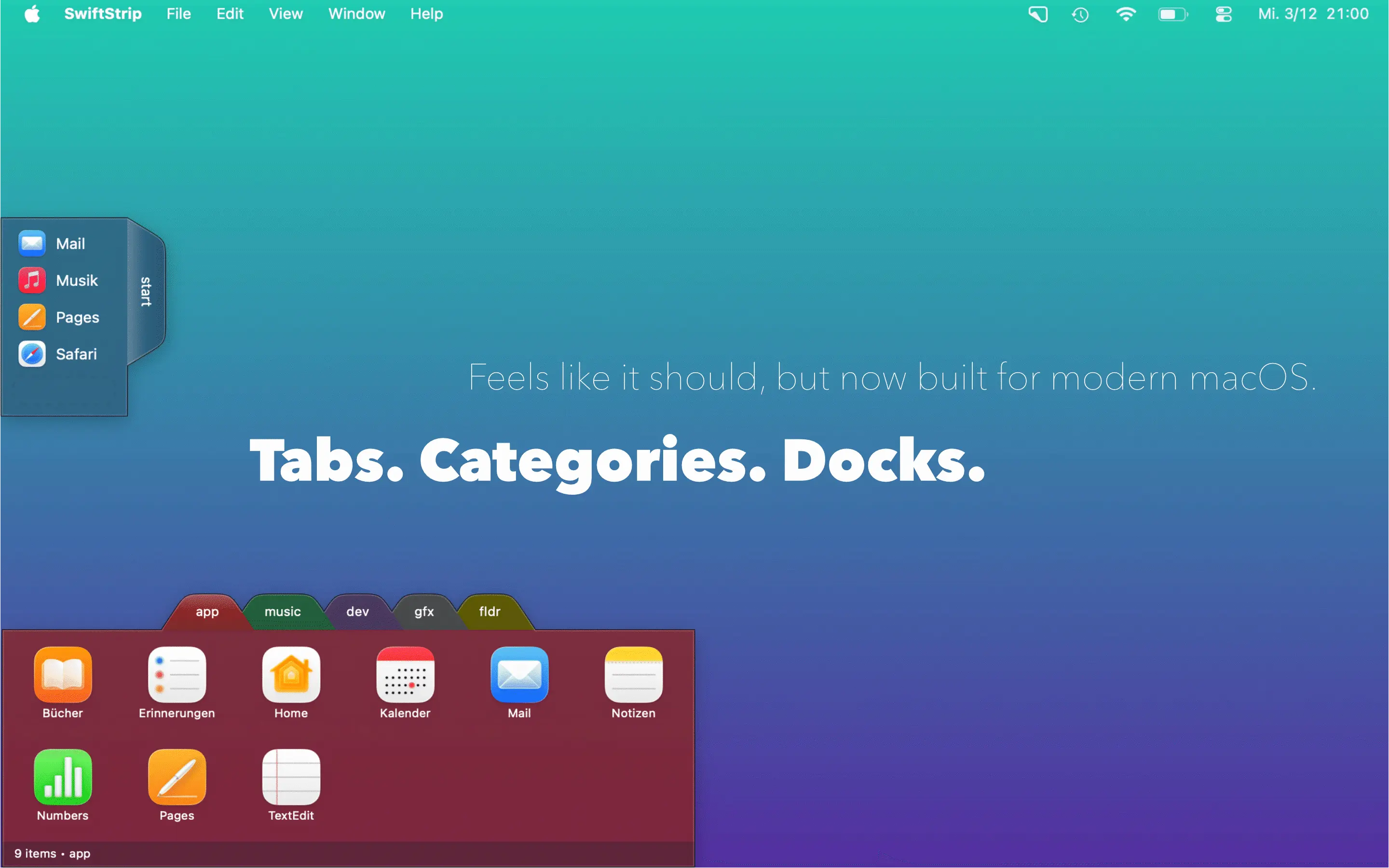
Group apps, files, and folders into tabs within each dock. Switch instantly with keyboard shortcuts or a single click. Color-code tabs for visual clarity.
Create as many floating docks as you need. Position them anywhere on your screen. Each dock remembers its position, size, and contents.
Choose fixed grid positions or auto-packing flow mode. Switch orientations between horizontal and vertical. Items transpose automatically.
Single-click to open apps and files. ⌘-click to reveal in Finder. ⌥-click to hide or show running applications. Right-click for more options.
Drag apps, files, and folders directly from Finder into any dock. Drop files onto app icons to open them with that app. Move items between tabs and docks.
Click and hold on a folder to browse its contents in a cascading menu. Navigate deep folder hierarchies without leaving your dock. Even drag files into subfolders.
Turn any tab into a live view of a folder. Contents update automatically when files change. Sort by name, date modified, or kind.
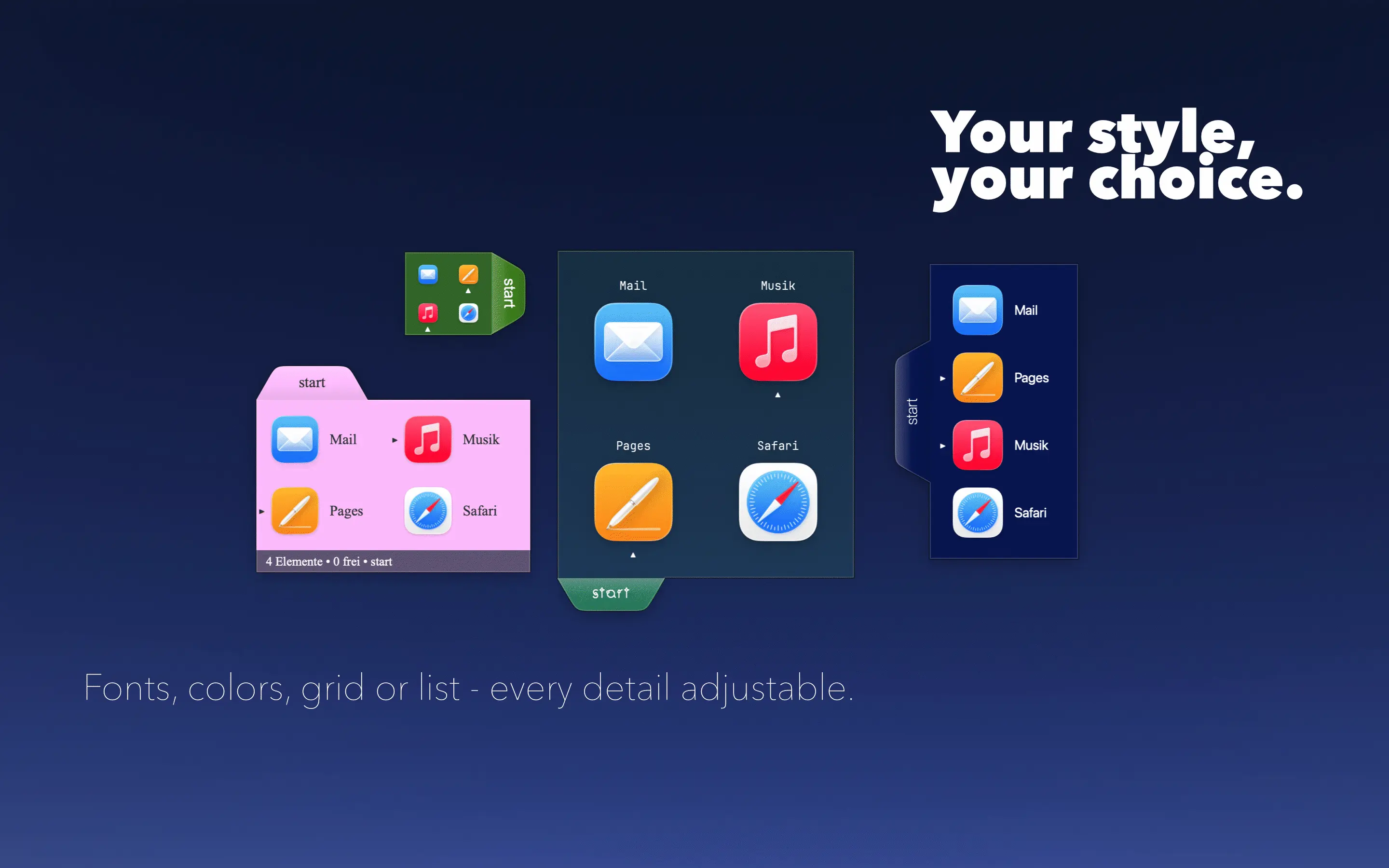
Set background color and opacity for each dock. Choose individual tab colors. Adjust transparency from solid to fully see-through.
Icon sizes from 24px to 128px. Position labels above, below, left, right, or hide them. Pick any system font for labels, tabs, and status bar.
Configure spacing between items, grid padding, corner radius, tile backgrounds, and borders. Adjust every visual detail to match your aesthetic.
Three modes: slide off-screen, fade to transparent, or hide completely. Configure delays, slide direction, and keep tabs visible while content hides.
Keep your docks visible above all windows. Docks automatically come to front when you drag files, so they're always accessible when you need them.
⌘1 through ⌘9 to switch tabs. ⌘T for a new tab. ⌘N for a new dock. Everything is keyboard-accessible for power users.
Press ⌘N or go to File → New Dock. A floating dock window appears on your desktop, ready to fill.
Drag applications, files, or folders from Finder straight into the dock. They snap into the grid automatically.
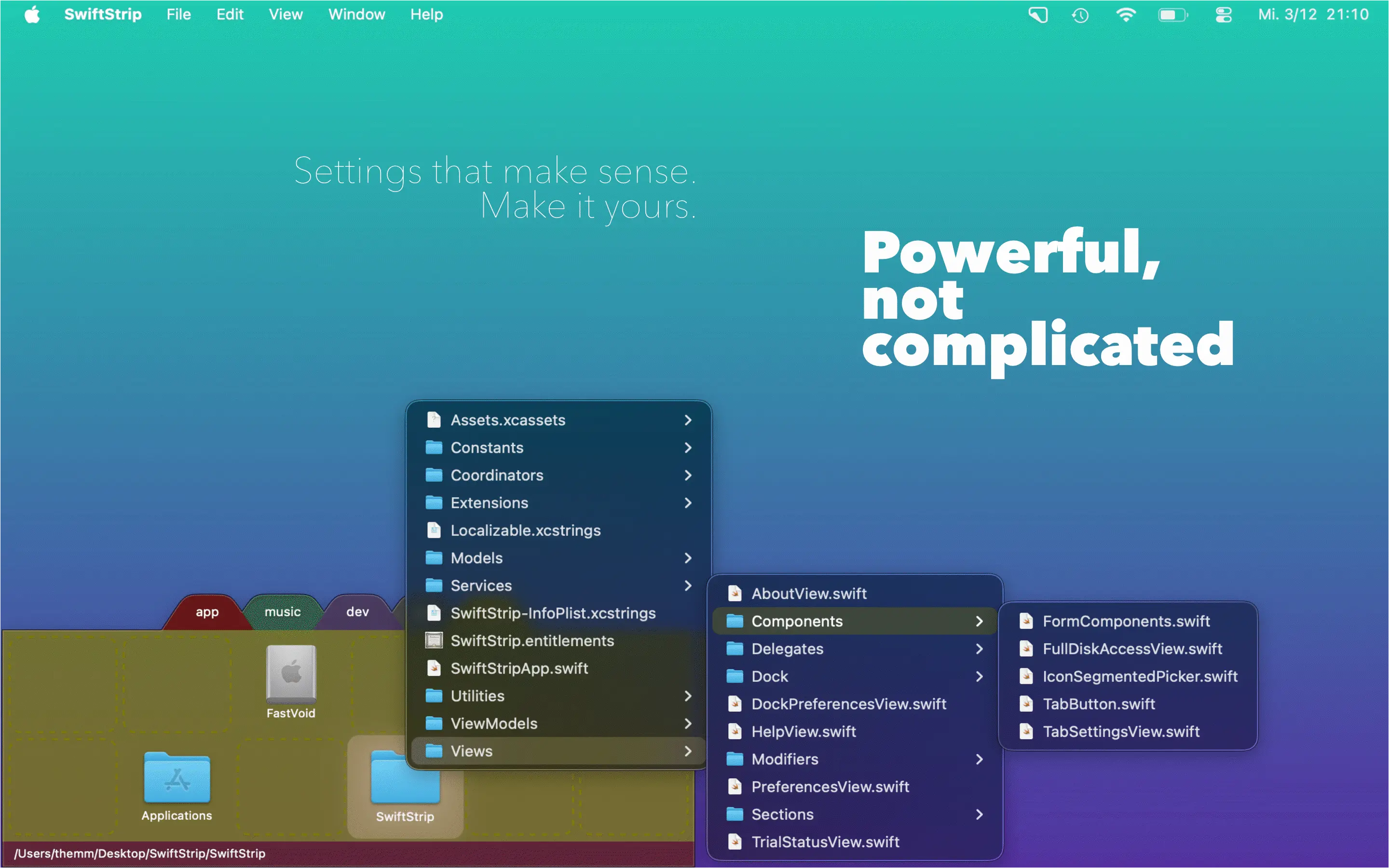
Press ⌘T to add tabs. Color-code them, name them, drag them to reorder. Your workspace, your rules.
Download SwiftStrip and use every feature for 30 days, no credit card, no sign-up, no strings attached. When the trial ends, core features stay free forever.
Every feature unlocked from day one. Auto-hide, spring-loaded folders, keyboard shortcuts, watch folders — try it all with zero commitment.
When the trial ends, SwiftStrip keeps working. Create docks, organize with tabs, customize colors and layouts — core features never expire.
Love the advanced features? Subscribe monthly or yearly, or pay once with a lifetime license — one payment, yours forever. No recurring charges if you don't want them.
The macOS Dock is fine for a few apps. But if you work with dozens of tools, creative suites, dev environments, or media apps, you need more organization. SwiftStrip adds floating tabbed docks that supplement your Dock without replacing it.
Built with SwiftUI and AppKit. No Electron, no web views. Launches in under half a second, uses minimal memory, and respects your Mac's resources.
Regular updates for the latest macOS versions. Built by an independent developer who uses it daily. SwiftStrip grows with your Mac and is here to stay.
Core features are free forever with no trial expiration on the basics. Create docks, add items, customize appearance. Pro adds auto-hide, spring-loaded folders, and keyboard shortcuts.
See how SwiftStrip stacks up against the macOS Dock and popular alternatives.
| Feature | SwiftStrip | macOS Dock | Tab Launcher | iCollections | uBar |
|---|---|---|---|---|---|
| Multiple Docks | |||||
| Tabbed Organization | |||||
| Drag & Drop from Finder | |||||
| Auto-Hide Modes | |||||
| Custom Colors & Fonts | |||||
| Spring-Loaded Folders | |||||
| Keyboard Shortcuts | |||||
| Grid & Flow Layouts | |||||
| Watch Folders | |||||
| Native macOS | |||||
| Actively Updated (2026) |
DragThing was the original tabbed dock launcher, beloved by Mac users for 24 years before macOS Catalina ended its run in 2019. SwiftStrip was built to carry that torch forward. If you miss DragThing, you'll feel right at home.